GET MORE DONE.
Goose User Guide

What Is Goose?
Goose a mobile app by FieldLogix that you use in the field to be more productive.
Goose gives you the ability to:
- Clock in and out each workday
- Receive and complete dispatched routes
- Communicate with dispatchers via text messages
- Access your personal performance dashboard & scorecards
- Access dash camera video
- Submit vehicle inspection forms
Some of these features may not be enabled by your administrator.
How Goose works
You would log into Goose on a regular basis to complete tasks specified by your fleet administrator. These tasks could include reviewing your scorecards, completing dispatched jobs, submitting inspection forms, etc. The information that you access in Goose is the same information that is accessible by your fleet administrators. The data that you save in the app (i.e. vehicle inspection forms and timeclock records) is available in reports that can be viewed by your fleet administrators. All data that you input into the app is encrypted and protected in a secured environment.
Downloading the App
- Download the app here for your device, or search for “Goose by FieldLogix” in your phone’s app store.
- Confirm the developer is FieldLogix before installing it.
- Tap Install (or Get) and wait for the download to finish.
- Open the app once installed.
- Sign in using the username and password provided to you by your fleet administrator.
- When prompted, allow Location and Notification permissions so the features work correctly.
Using Goose Day to Day
After logging in, go to the home page to access the features that are assigned to you.
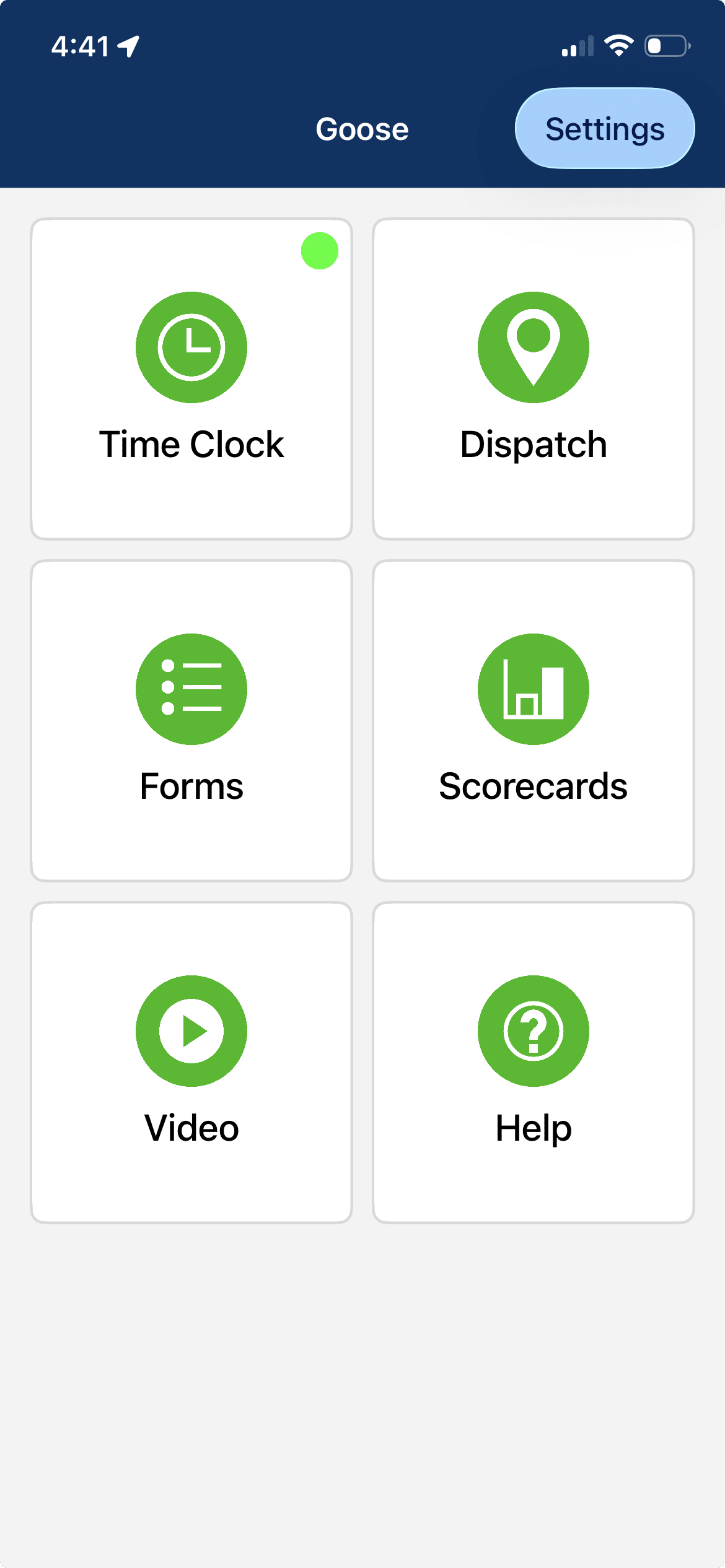
Feature Shortcuts
Click the links below to jump to the details for each feature.
Time clock
Dispatch
Messaging
Forms
Scorecards
Video
Time Clock
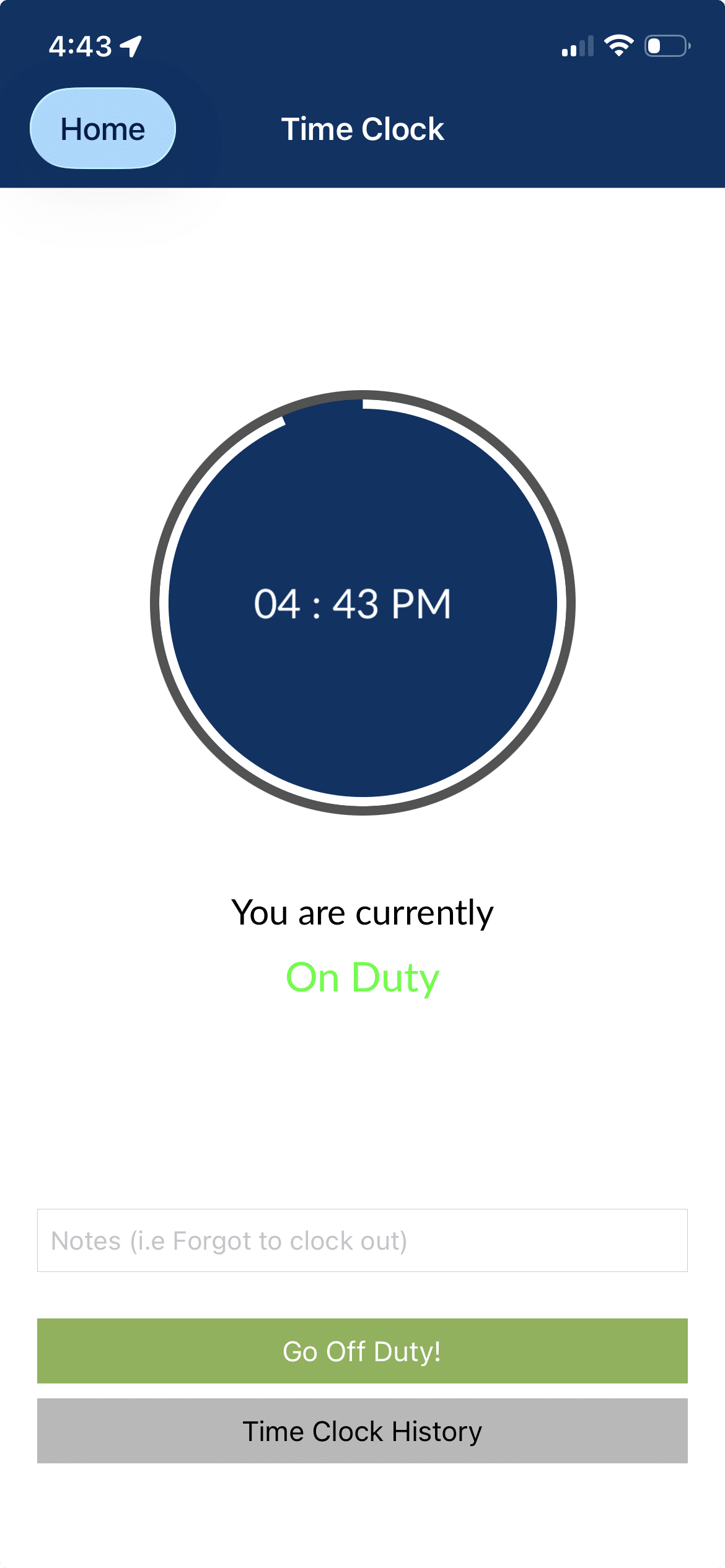
Click the time clock button to clock in and out of your shift each day.

Simply click the “Go on duty” button to clock in and the “Go off duty” button to clock out.
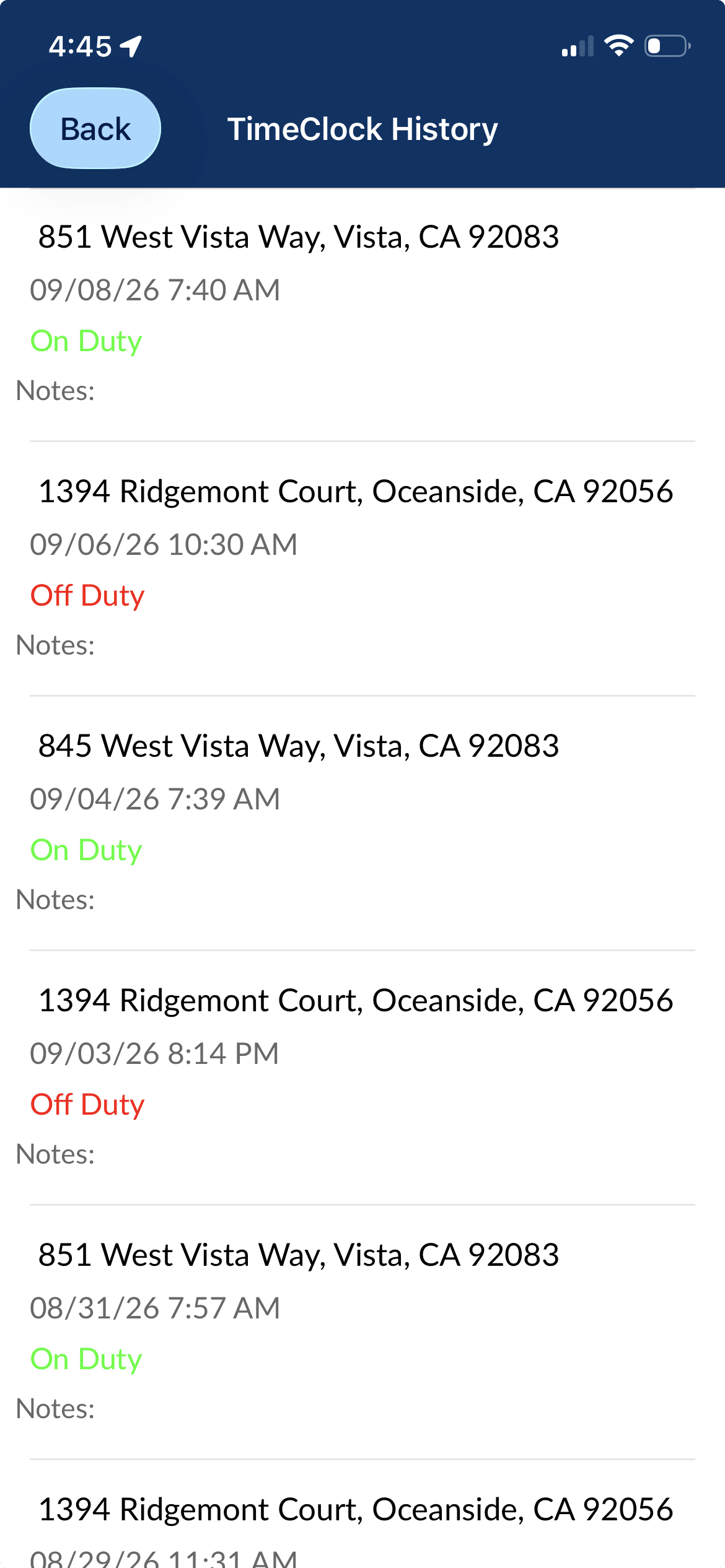
You can also view your historical time clock records by clicking the “Time Clock History” button.
Dispatch
You can use Goose to view and complete jobs dispatched to you each day in the dispatch section.

After clicking dispatch, you will see a list of jobs that were dispatched to you for the current day.

Completing Jobs
After clicking on the job that you will complete, it will take you to a screen to view the job’s location on a map, real-time traffic, and the job’s address. Click the green up arrow to expand the screen to see details such as the job instructions and the contact’s details.

Click “GO” to start your route to the job. The app will prompt you to send an ETA and will give you turn by turn directions to the job.

Click the blue compass icon to send the destination to your preferred navigation app (i.e. Google maps, Apple maps, or Waze) to receive turn-by-turn navigation to your job.

Once you arrive to the job, click the “Arrived” button to update your status.

This will take you to the proof of service screen, where you can submit multiple pictures, capture your client’s signature, scan a bar code, and add notes.
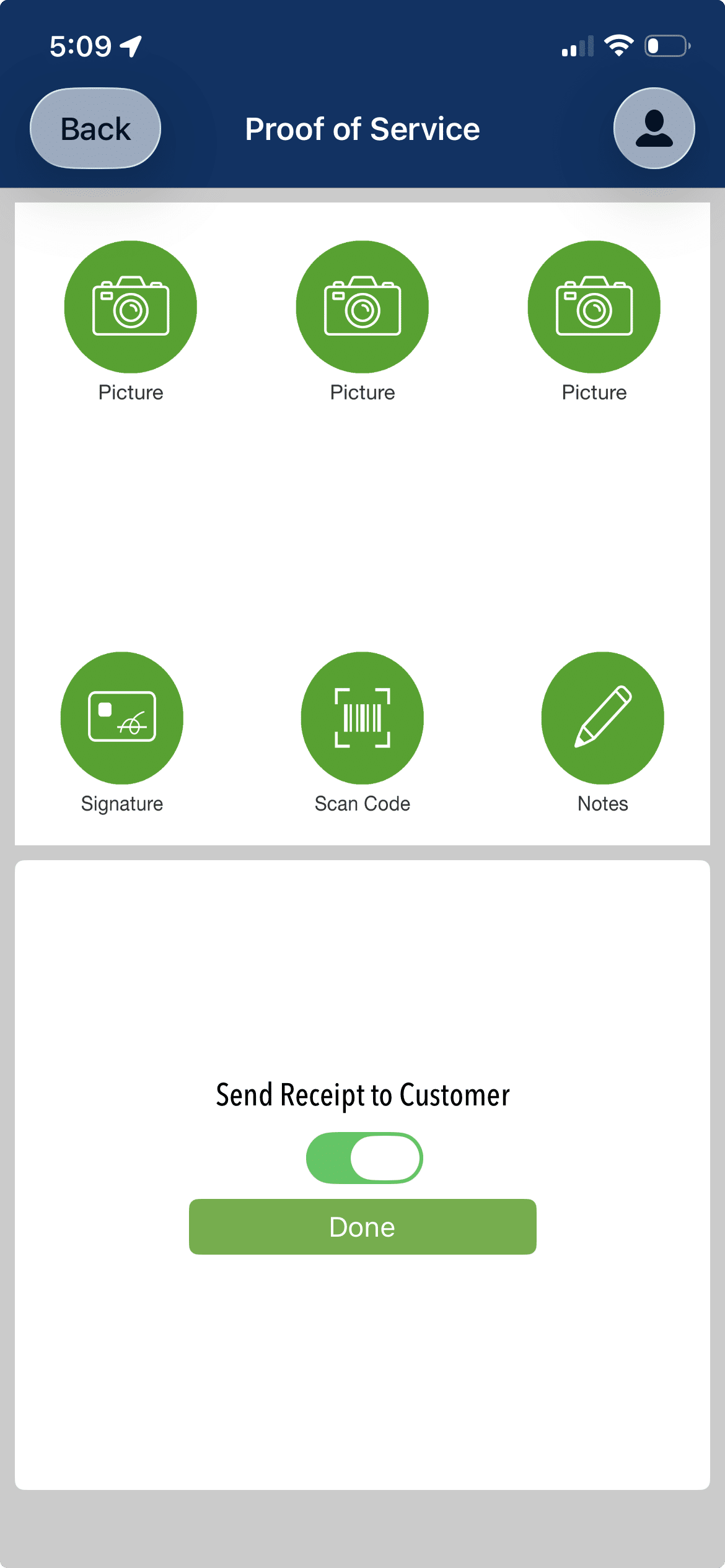
If you keep the “Send receipt to customer” toggled on, the app will send the client a text message and email with the pictures you captured, their signature, and it will ask them to provide feedback on their level of satisfaction with your service.

You would then go back to your route list to complete your additional jobs. Jobs with the grey circle with the check mark are completed, jobs with the green circle with the arrow are active, and jobs with the blue circle and numbers are pending.

Messaging
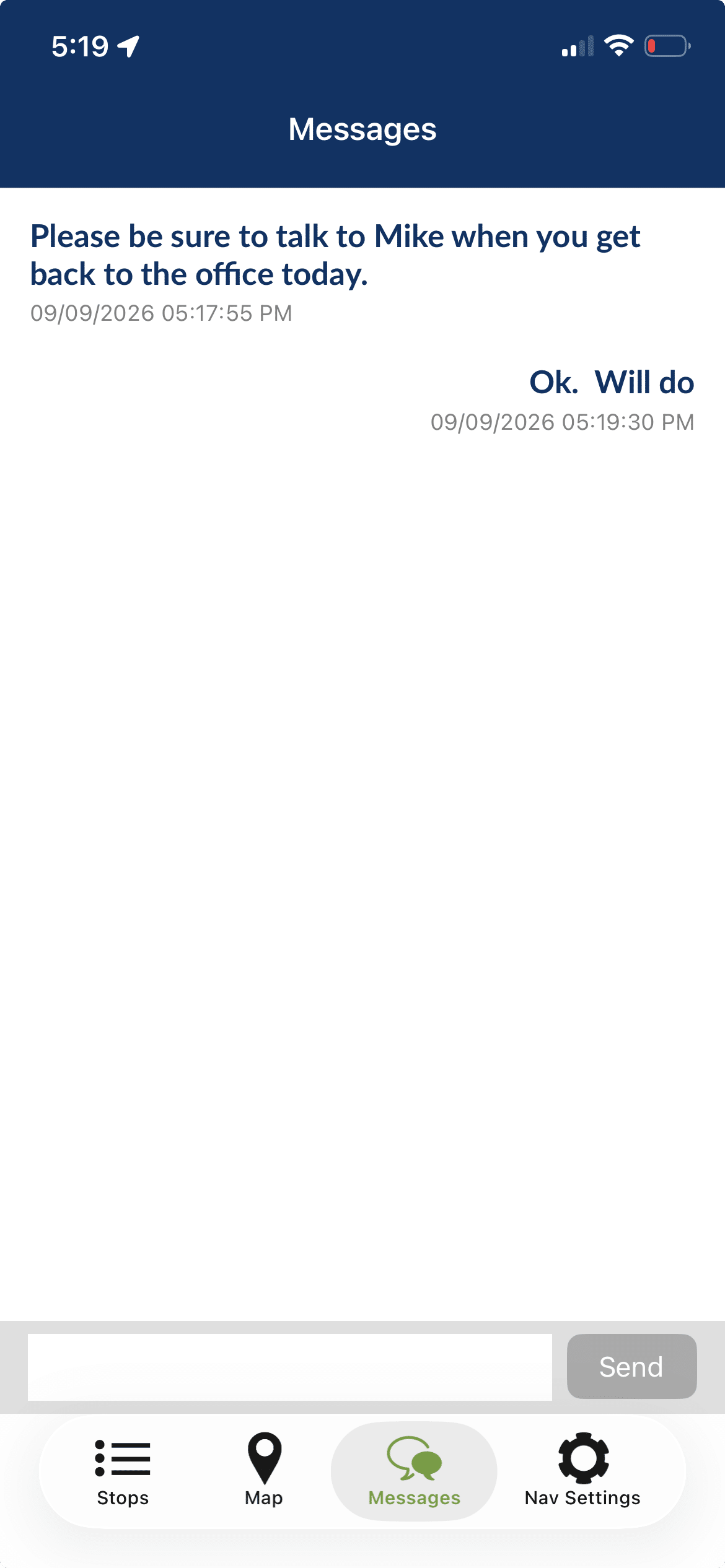
A messages icon displays at the bottom navigation section inside the dispatch feature. You will receive an in-app notification and the messages icon will show a red indicator if there are new messages. After clicking on it, you can view your inbound messages from your dispatcher and reply to their messages in the app.
Scorecards
Click the scorecards option to view your performance scores. These show you key performance metrics such as your safety and sustainability scores as well as an AI-powered crash risk prediction report.

The first screen displays the local weather forecast.

Crash Risk Report
Scroll down to see your AI-powered crash risk report. This report gives you your personal crash risk probability based on your historical driving behavior and the local weather forecast.

Sustainability Scorecard
You can then toggle to the sustainability scorecard by scrolling up and clicking the sustainability tab on the top of the screen. The sustainability scorecard measures driving behaviors that waste fuel, such as excessive idling and speeding.

This report shows your sustainability score, the fleet average, your variance from the fleet average, and your ranking within the total fleet. You can change the dates to view your scores for a different time period.
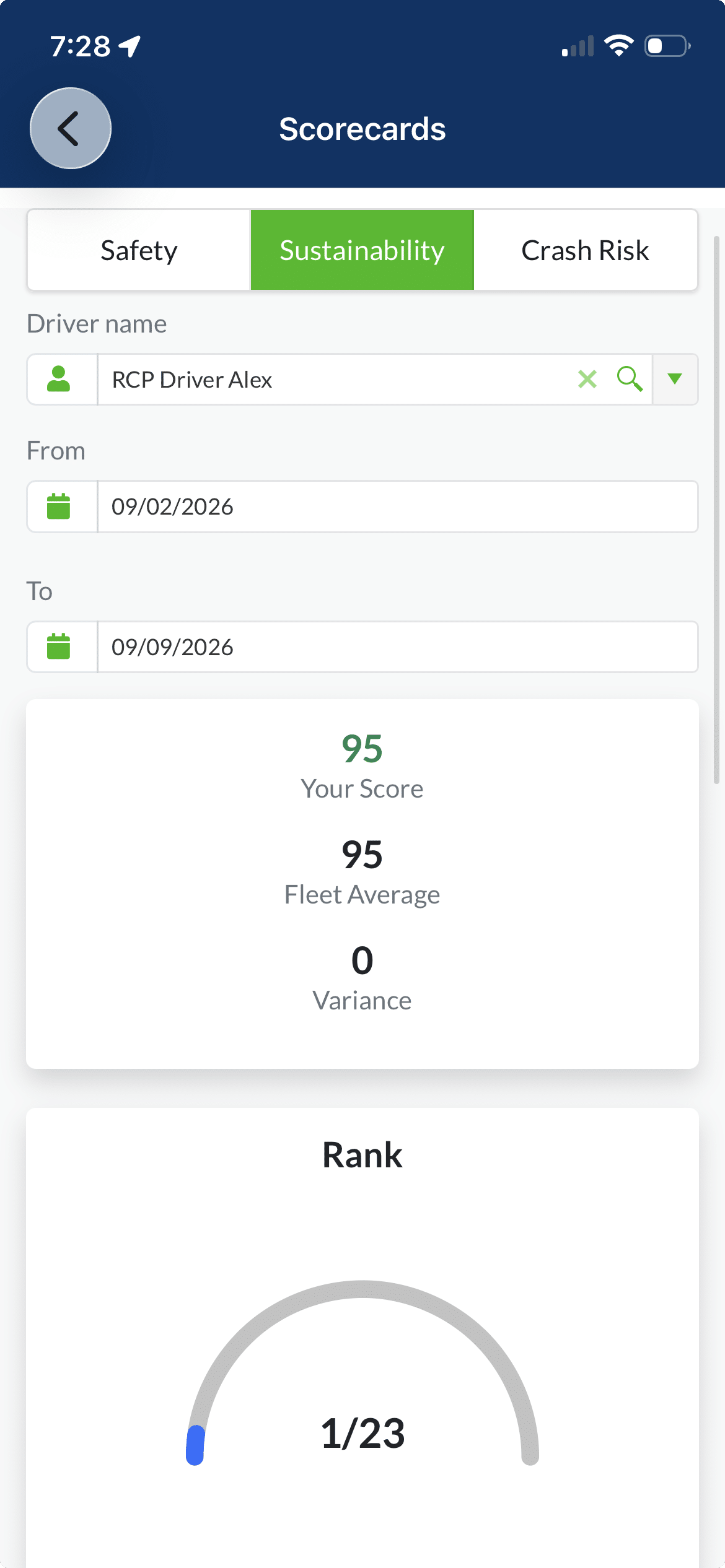
Scroll down to view additional metrics, including estimated wasted fuel, fuel consumed while idling, and your scoring trends over the past 3 months compared to the fleet average score.

Safety Scorecard
Navigate to the Safety Scorecard by clicking on the Safety tab. The Safety Scorecard shows your performance for key safety activities such as aggressive driving and speeding.

This report shows your safety score, the fleet average score, your variance from the fleet average, and your ranking within the fleet. You can select different dates to view your scores for a different time period.
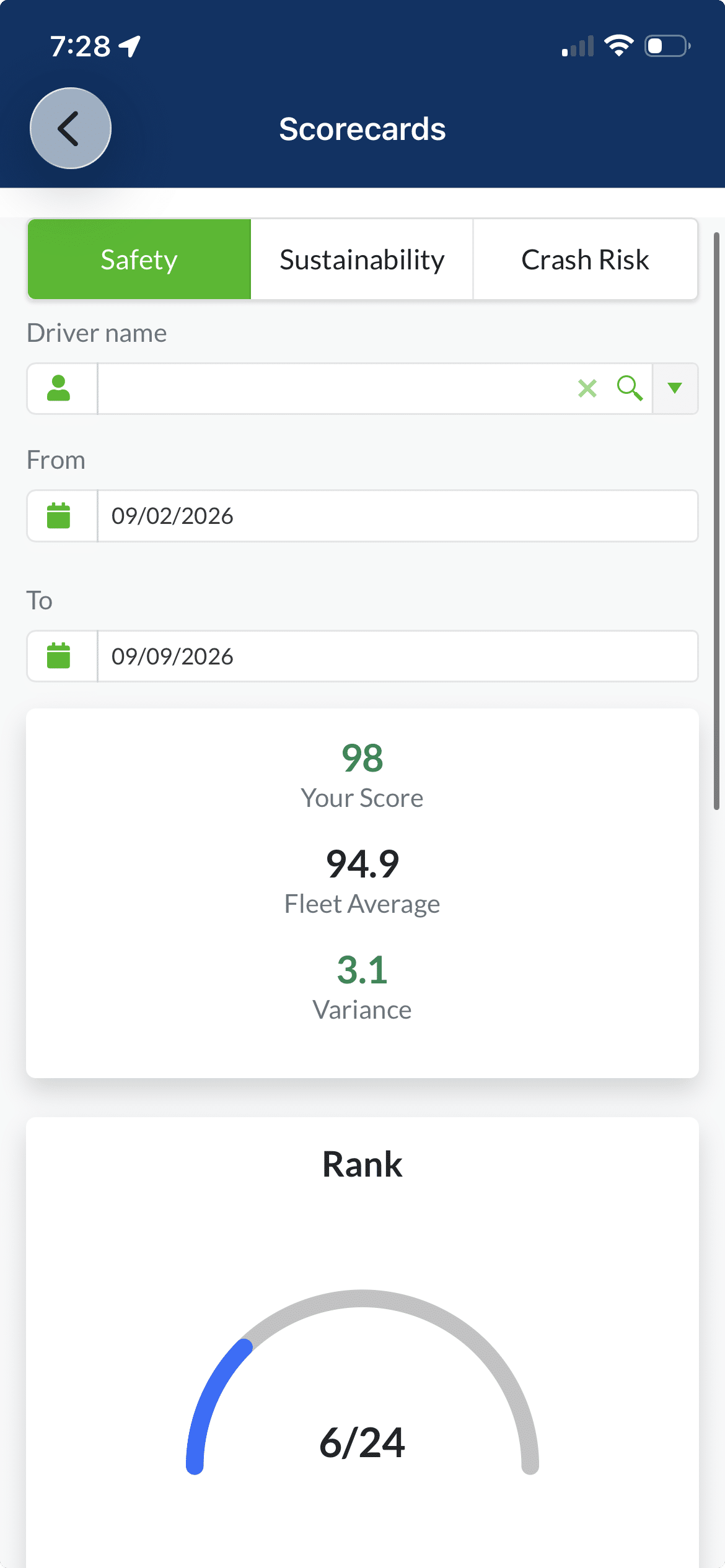
Scroll down to view additional details such as the count of each infraction during the reporting time period (hard starts, hard stops, hard turns, max speed violations, and posted speed violations). You can also see your score trends compared to the fleet average over the past 3 months.

Video
The in-app video gives you the ability to retrieve dash camera video to help you prove that you were not at fault during accidents.

You can select the date and time, the camera lens to play, and your video quality. The green time bars below the video displays driving activity. You can click on the green bars to select a specific time to start the video. The graph below the time bar shows your vehicle speeds during each point in the video clips.

Forms
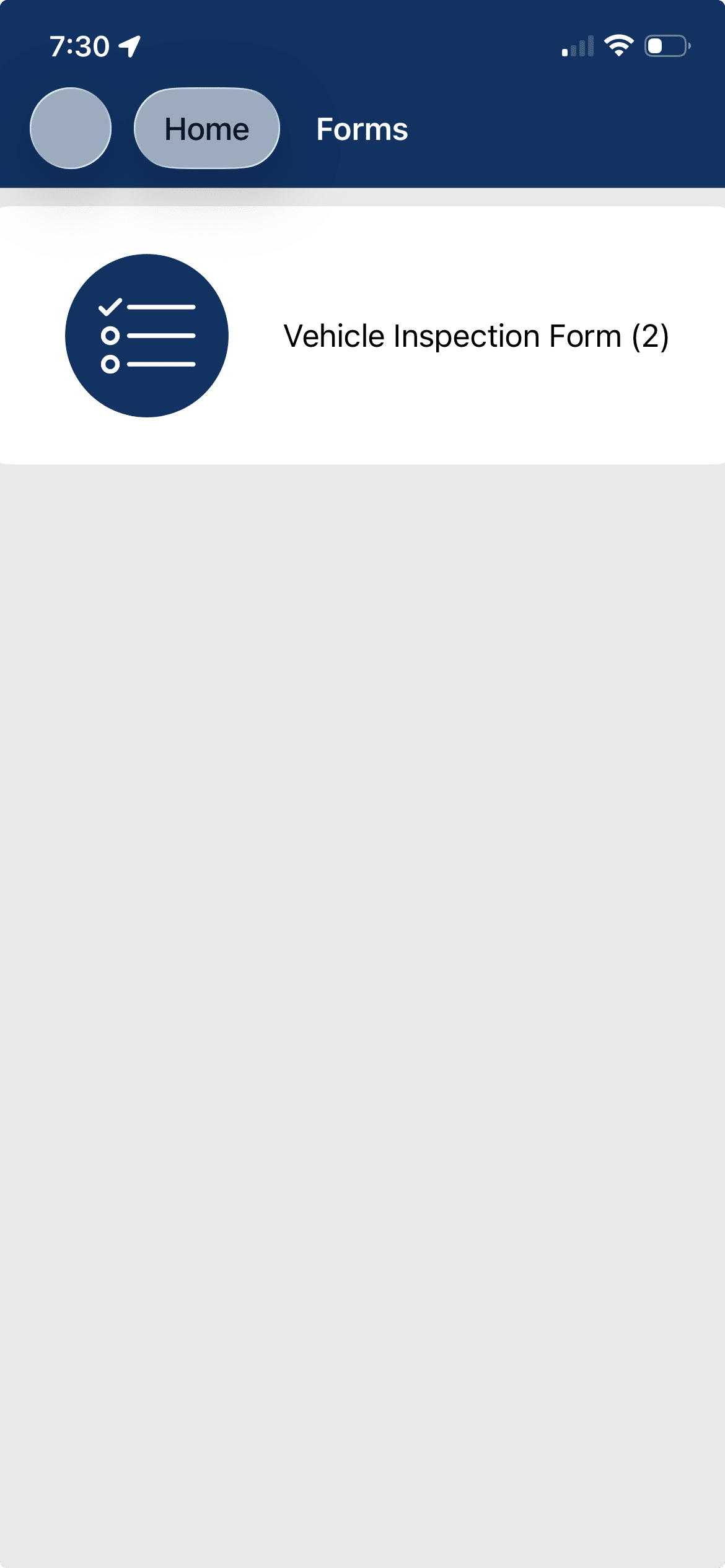
You will be able to complete the vehicle inspection form in the forms section. This form will flag any vehicle safety issues and is accessible by your fleet administrator so they can schedule repairs.

Select the vehicle inspection form. Click the form to complete it.
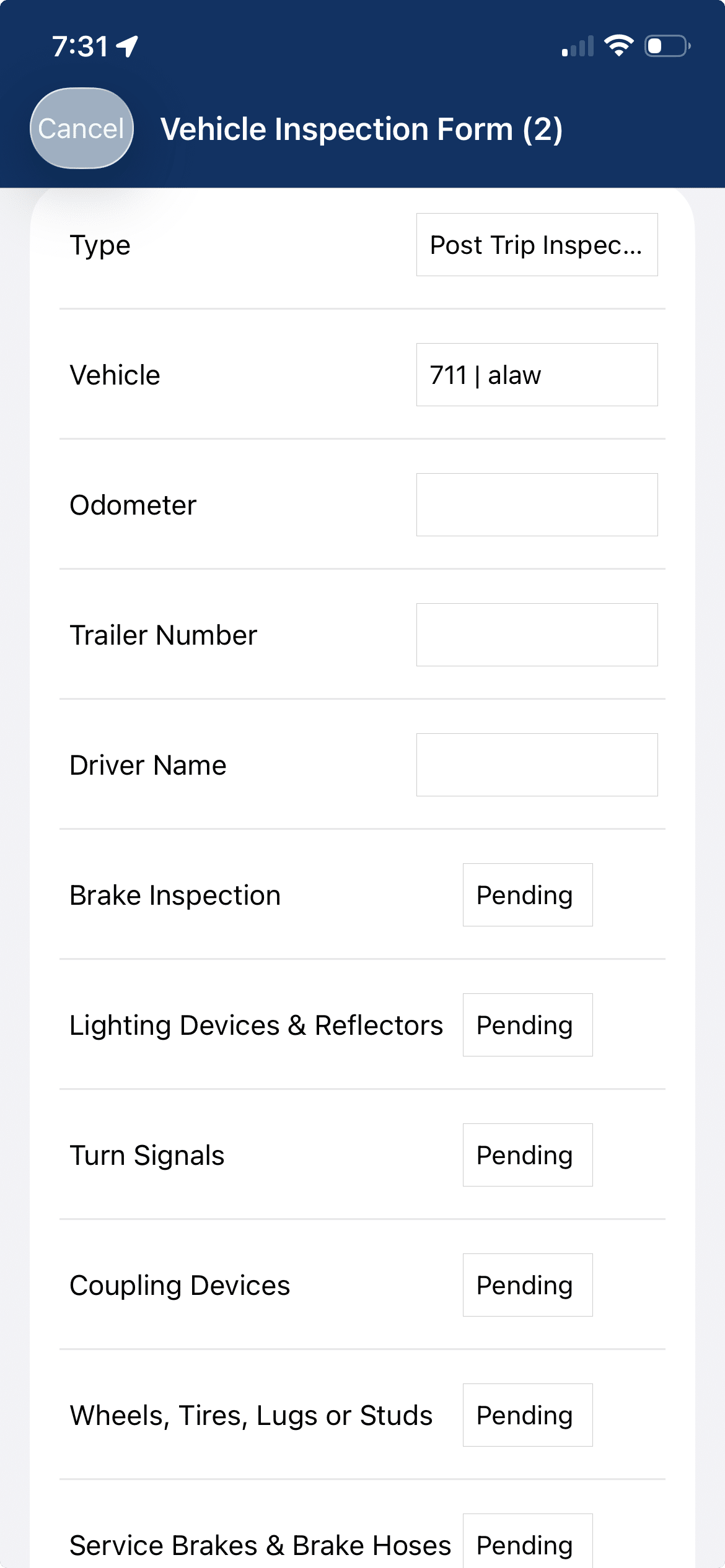
You would then select the type of vehicle inspection (pre-trip or post-trip), select the vehicle, enter your odometer, trailer number, driver name, etc.
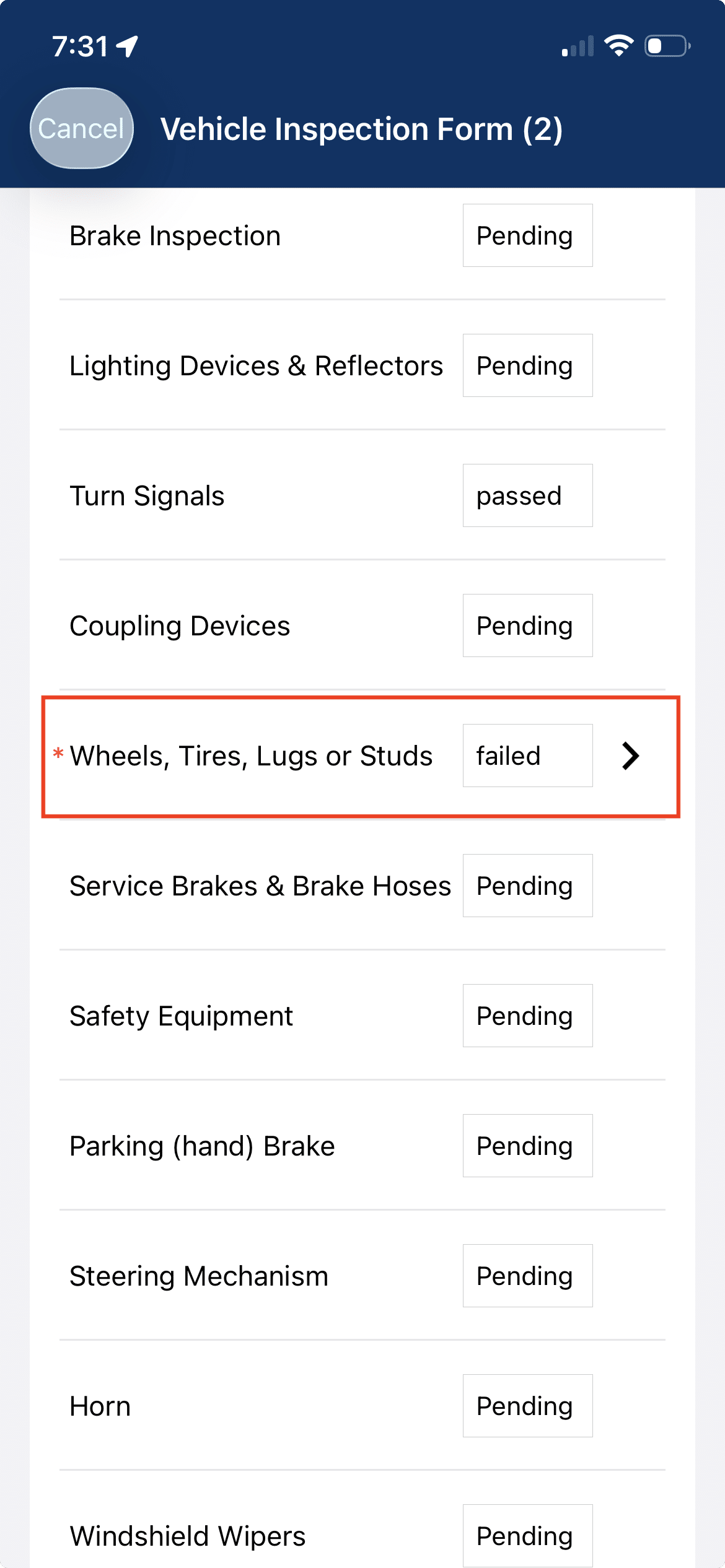
You would then go through each inspection point and mark the items as passed or failed.

If an item fails, you will see an arrow to the right of the field. Click the arrow to submit details for the failed inspection point.
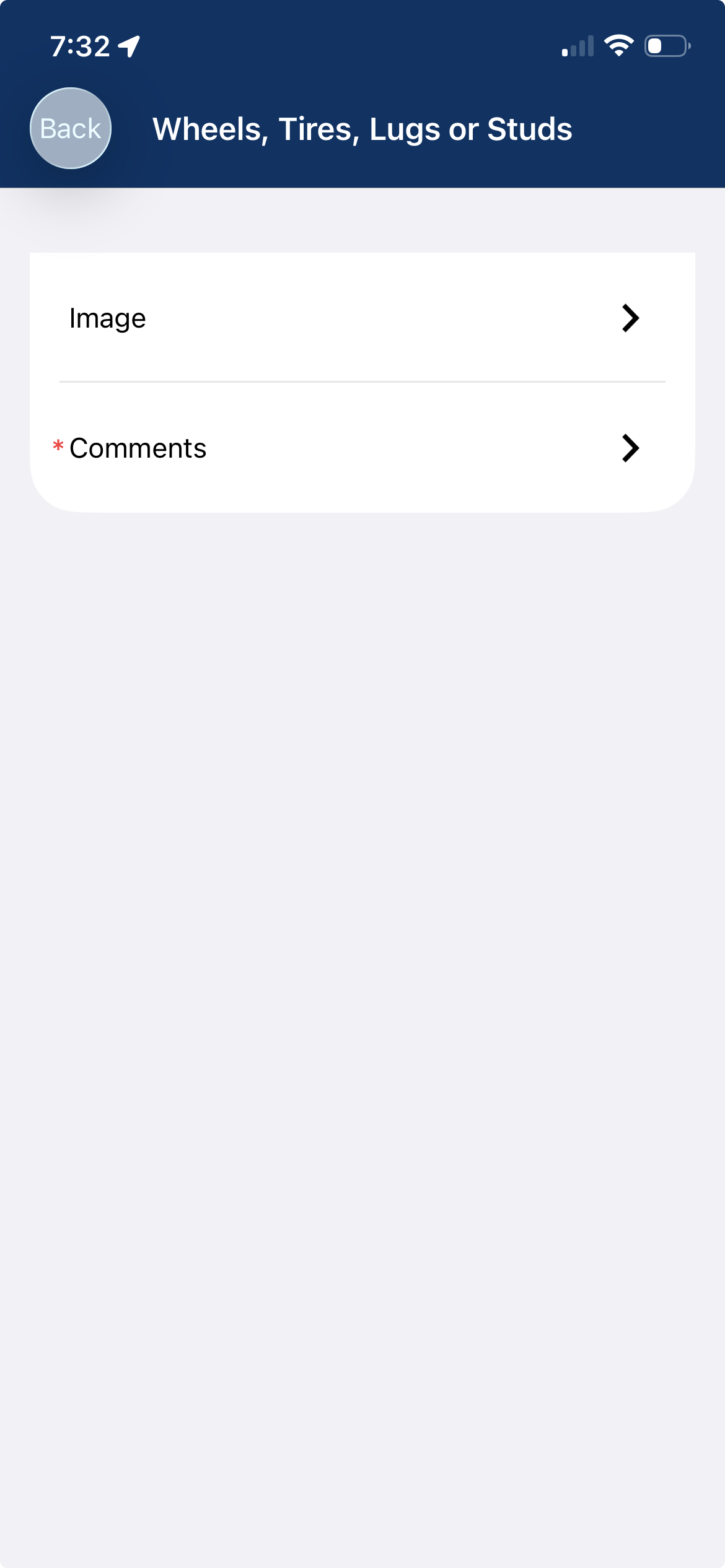
You can then submit images and comments for the failed inspection item.
When the inspection is complete, click the arrow next to the driver details section.
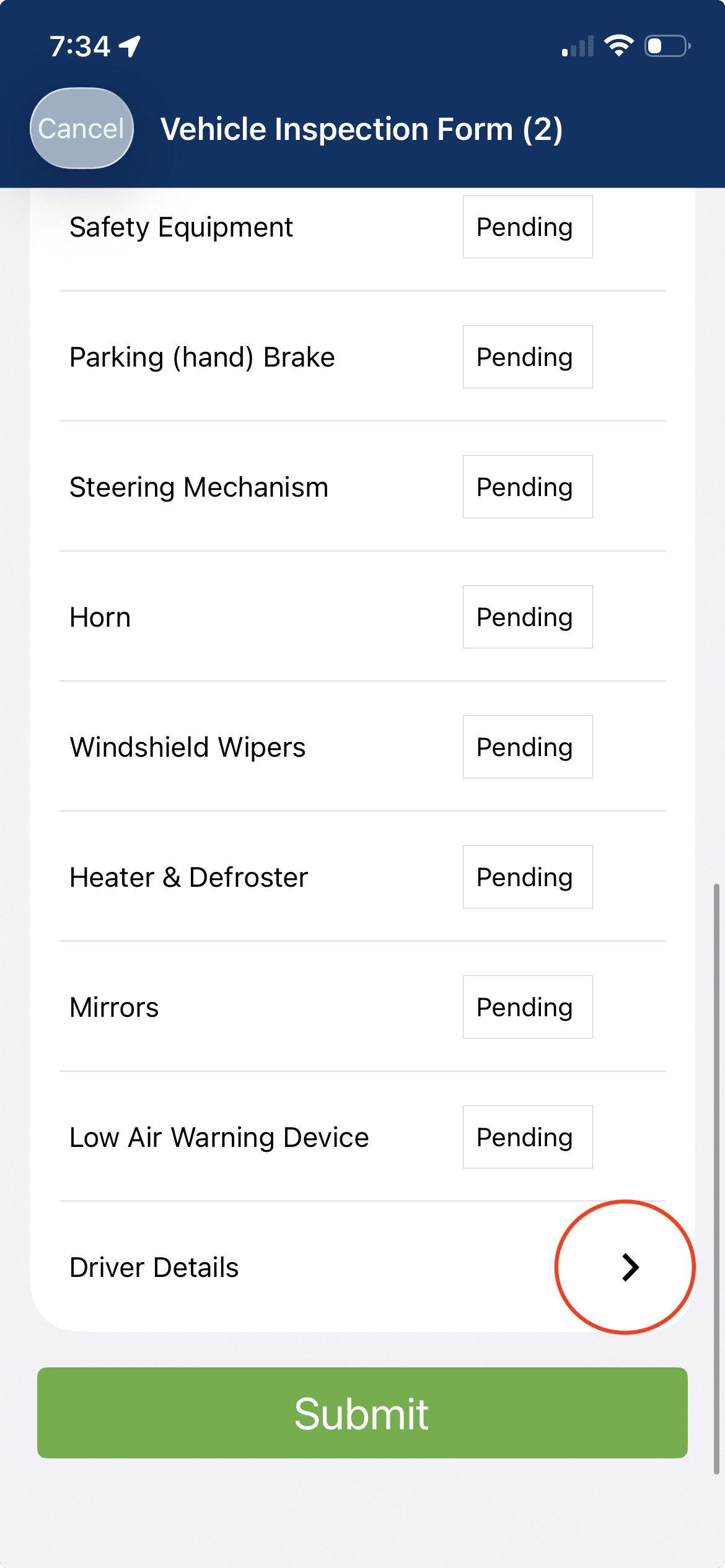
You would then submit any final notes and your signature.
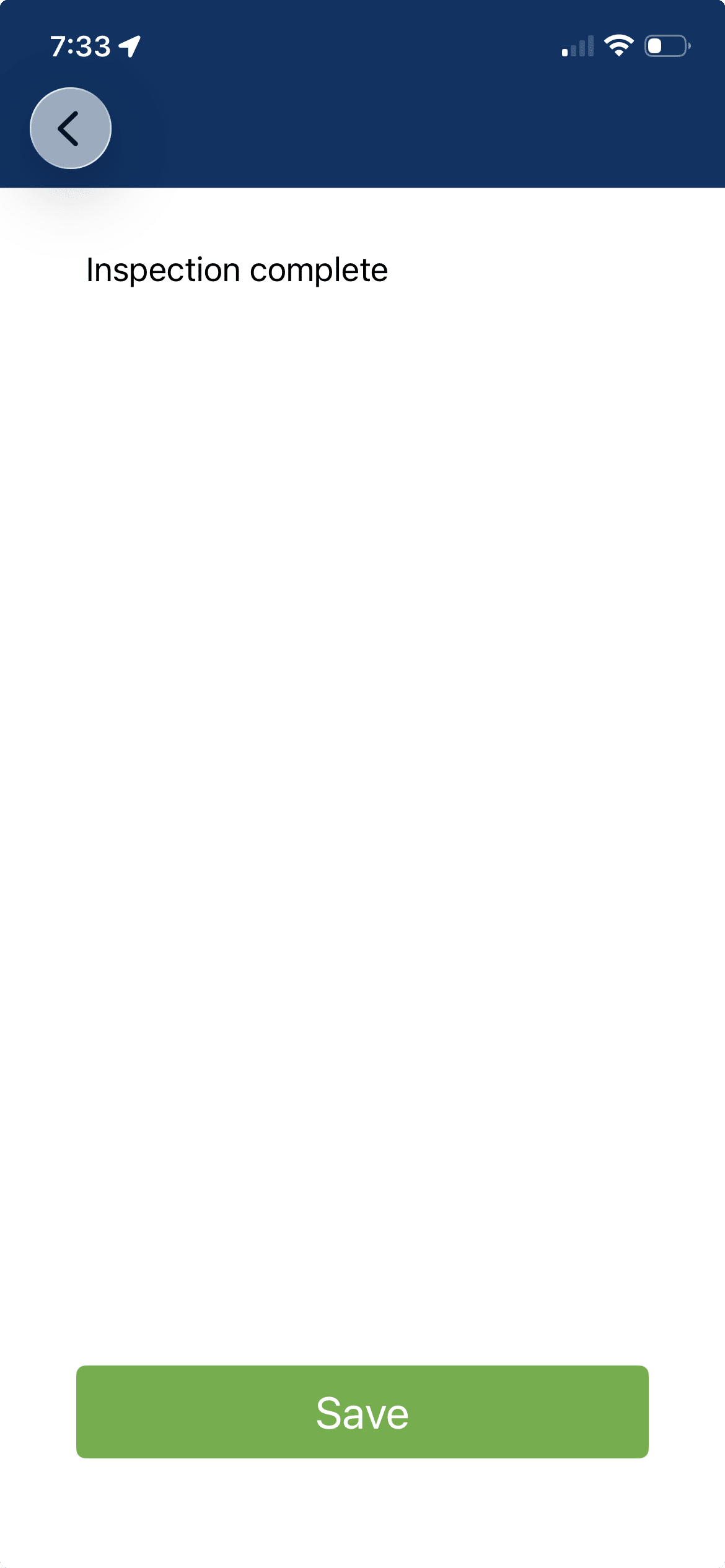
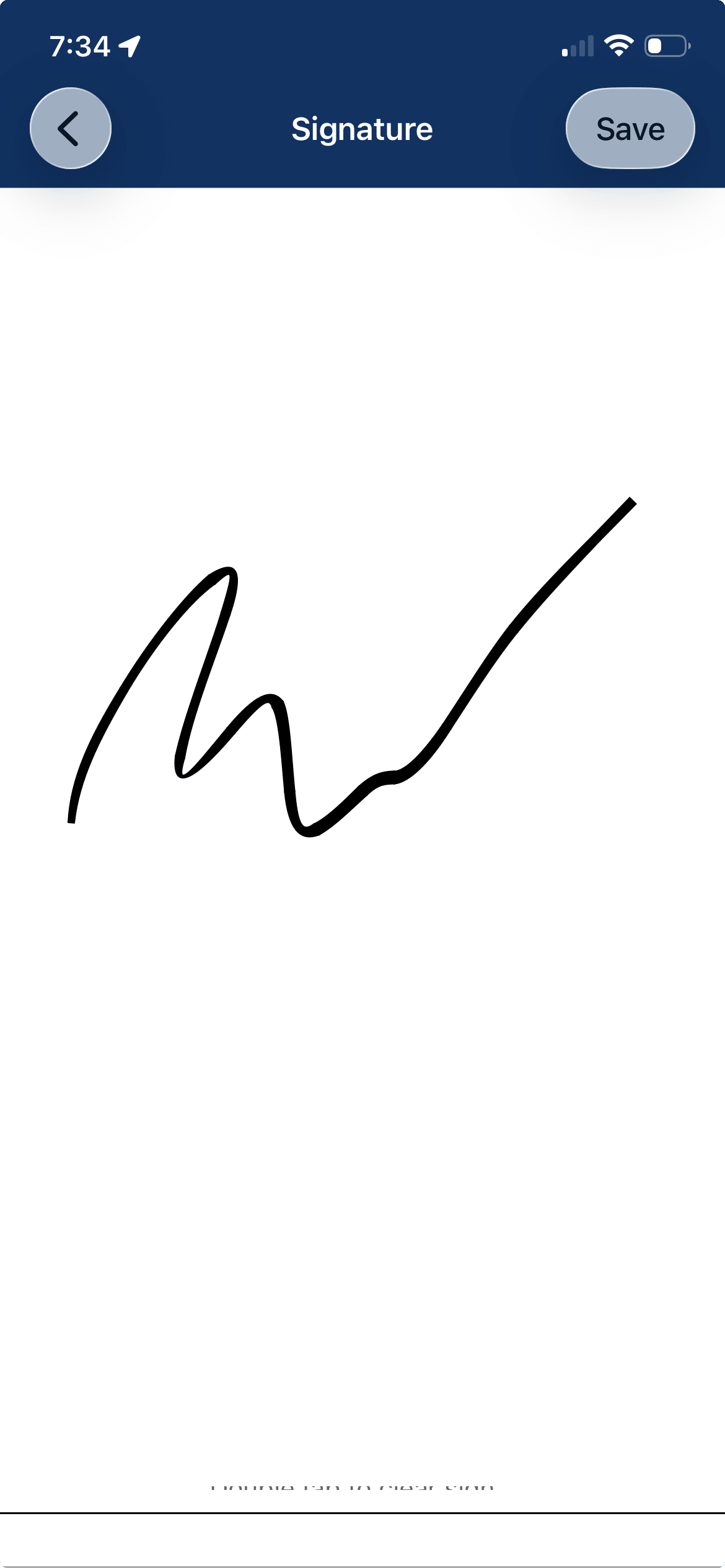
Click the back button to go back to the form screen.

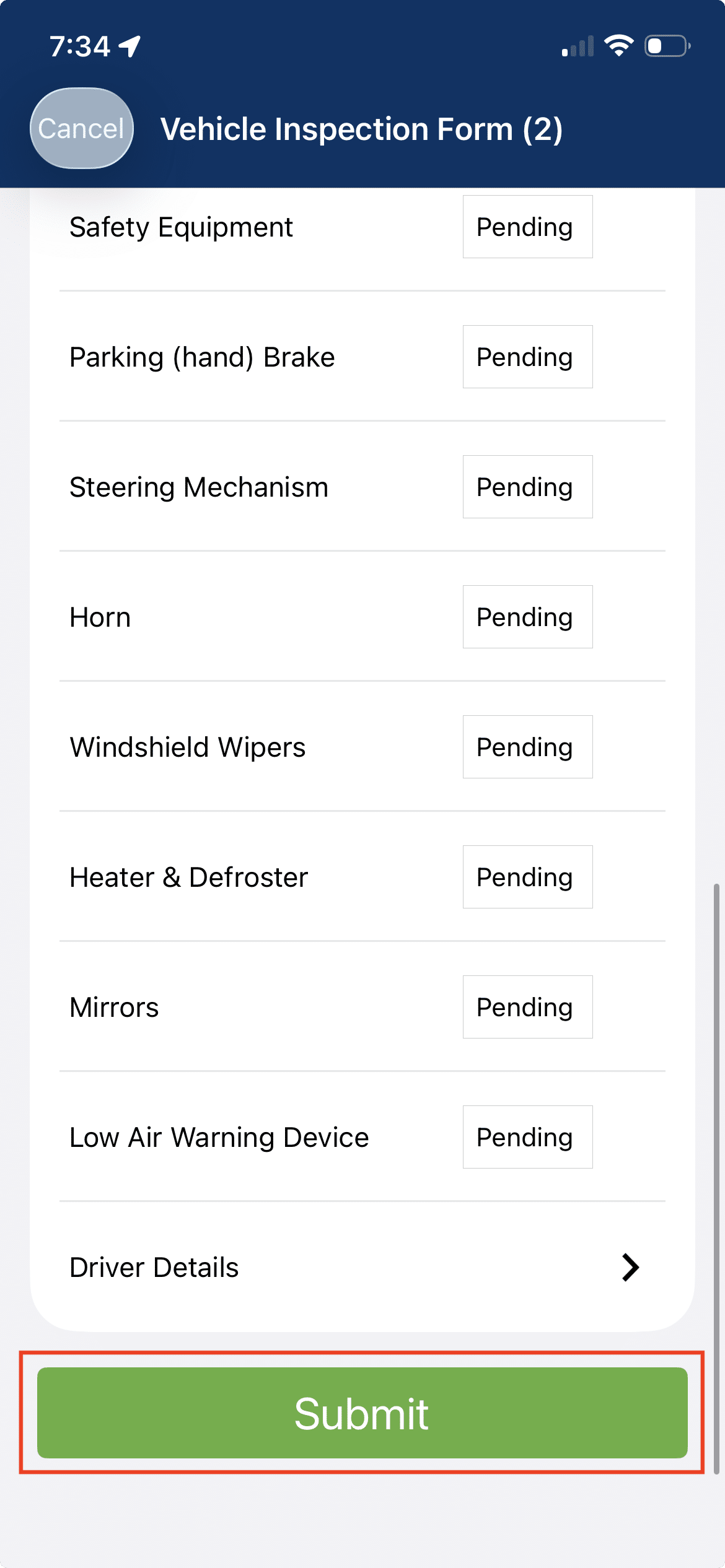
Click the submit button to finalize the form submission.
Tips
- Keep the app open and location services on throughout your shift for accurate ETAs.
- Background GPS use will draw more battery — carry a charger or battery pack on long shifts.
- Update your status at each stop; this is what triggers the customer’s ETA notification.
- Contact your dispatcher directly through the app if a stop’s details look incorrect.
Need Help?
If you have trouble logging in or a feature seems unavailable, contact your fleet administrator or dispatcher — they manage permissions and account setup in the FieldLogix web portal.