Setting up Drivers Dashboard & Video Access

Your drivers have the ability to review their safety and sustainability scorecards, crash risk report, and dash cam video in the Goose app.
Please follow the instructions below to setup your drivers’ access to these features.
1. Add Drivers
To add your drivers, go to Settings > Manage Drivers. If you do not see this option in FieldLogix, email us at support@fieldlogix.com requesting that we give you access to the Manage Drivers feature.

Click Create Driver to create a new driver

2. Driver Details
Add the driver’s username, first name, last name, and phone number. The items in the screenshot below with the red outline are required. The items with the yellow outline are optional.

3. Driver Settings
Go to the driver settings tab to select the map icon color and assign the driver to a specific vehicle. Then check the Enable Scorecard checkbox to give the driver access to the driver scorecards. Click Enable Video Playback to give the driver the ability to retrieve dash camera video in the Goose app.

4. Driver Access
Provide the driver with the username and password displayed on the Manage Drivers screen. Instruct the driver to download the Goose app at fieldlogix.com/goose-download/
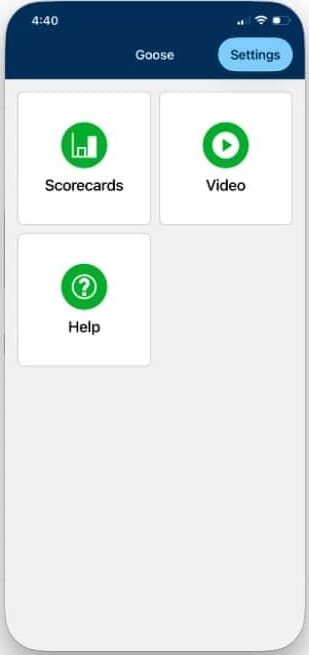
Upon logging in, the drivers should now see the following options in the app’s home screen. They would then click on either feature to access it.