Dash Camera Quickstart Guide
Please follow the instructions below to setup your dash cameras and access video footage.
1. Assign Cameras
To assign cameras to your vehicles, go to Settings > Manage fleet and edit the vehicle that the camera should be assigned to. Select the camera’s IMEI number from the Open Cameras dropdown to assign it to the vehicle.

2. Stream Camera
You can test the the camera by going to Map View and clicking on the Filters tab of the map controls, then selecting the vehicle with the camera installed. After selecting the vehicle, click on the vehicle’s icon to display the “Show camera view” button. Click the button to live stream the camera.

3. View Recordings
You can view historical recordings of the cameras in Reports > Camera Recordings. You would select the vehicle and the date. The grid will display the available recordings. You can click view video to view the video recordings for that day.

Once the video screen pops up, you would, 1. Select the lens you want to view; 2. Select the video quality to play; 3. Drag the time selector to the time period you wish to view; 4. Click the play button to play the video.

4. Camera Events
The camera events report displays all events triggered by the cameras (i.e. speeding, aggressive driving, impact, etc).
Go to Reports > Camera Events to access the report. Select the vehicle and reporting period and click the Camera View button to review the video for the event.

5. In Cab Alerts
You can configure in-cab alerts to notify drivers when certain policy violations occur. This includes speeding, aggressive driving, etc. To set the notifications, go to Settings > Manage Notifications. You would then edit an existing notification profile or click Create Standard Notification Profile to create a new profile.

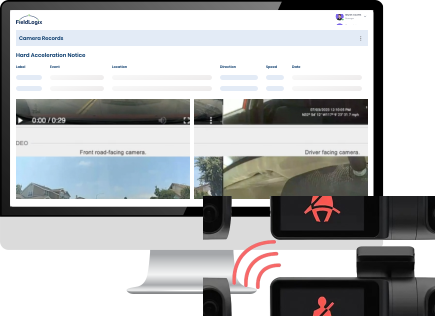
You would then click the Camera checkboxes for events that you want to generate an in cab notification for. The display on the camera shows an exclamation point (“!”) with a audible beep alert.
5. Other configurations
The camera also supports other types of notifications, including cell phone use, unbuckled drivers, etc. Our support team would be able to set these up for you. Download the dash camera configuration worksheet here and complete it. Email the sheet to support@fieldlogix.com and we will configure the cameras.